My First Slice of Pi: Discovering Raspberry Pi with my Class
Raspberry Pi is an exceptionally small, inexpensive and simple computer used to help teach students about hardware and programming. My former principal first introduced it to me, suggesting that Pi might be a neat activity to try with one of my computer classes. Not knowing anything about, I started researching what it was all about.
What is Raspberry Pi?
To quote Wikipedia, The Raspberry Pi is a series of credit card–sized single-board computers developed in the United Kingdom by the Raspberry Pi Foundation with the intent to promote the teaching of basic computer science in schools and developing countries.
How I Got Started
I decided that the curriculum of my Business Communications course, a precursor to senior programming classes, best fit the intent of Pi. Funds to purchase 16 Raspberry Pi 2, Ultimate Starter Edition, were generously provided through my school PAC, and my school administration. I got 16 of them so I would have at least 1 for every 2 students, as well as one Pi as a teacher demo model. Not knowing anything about Raspberry Pi I began by watching a number of different YouTube videos on how to get started. There are countless videos out there, but here’s an example of one I watched:
Growing Pains
I took the opportunity on one of our professional development days to figure out how exactly to have my students dive into Pi. Here’s a summary of what I learned:
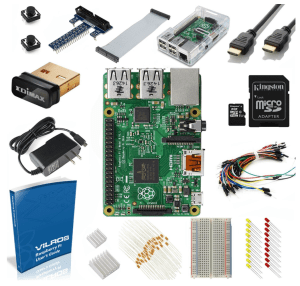
Despite purchasing the “Ultimate Starter Kit” for my Pis, I didn’t have the proper adaptor to enable the Pi to be plugged into our Dell monitors. The Pi has a built in HDMI port, and an HDMI cable was included, but I had to also purchase HDMI to VGA converters so we could use our monitors. It also only came with only male-to-male breadboard jumper wires. A few of the projects students found online later required the use of male-to-female wires that we didn’t have. My first lesson was to never assume all the hardware needed will be included! There are always additional costs to consider.
I spent a considerable about of time learning about how to format the SD card and download the NOOBs (New Out Of the Box operating System). Because I don’t have the proper administrative privileges on our school computers, I had to request that our district IT team install special formatting software on a few of the computers. I only realized later that because I had ordered the Ultimate Starter Kit that the SD cards included already have NOOBs on them.
My first time turning the Pi on was anticlimactic. I had the monitor, USB mouse and keyboard, Ethernet cable, and power plugged in, but nothing appeared to be working. I realized after that I had to have the power cord plugged in last, not first. I unplugged everything and plugged it all in again, attaching the power last, and it finally fired up!
Starting with Students
First Lesson
My first “lesson” with the students was spent looking at the different components of the Pi. After all, one of the great educational aspects of the Pi is the opportunity to identify different hardware pieces. Next we had to insert the mini SD card and install the operating system Raspbian and Scratch. In order to do this we had to start attaching some peripheral hardware to interact with the Pi. This involved taking all the mice, keyboards and monitors from our classroom computers and plugging them into the Pi. This was tough because everything is tied together so securely for fear of theft that some of the cables were difficult to access. Installing the operating system took about 25 minutes, but because the students were in pairs I could have them shift to another computer to continue working on another class project. At the same time we were also working our way through Codecademy, so I had them work on that. Providing sufficient time at the end of each class was important as it took some time to plug all the mice, keyboards and monitors in again and ensure they were working properly for the next class.
Second Lesson
When in doubt, read the instructions. The students and myself were both a little mystified when we were asked for a username and password during the next book up, even though we had never previously set one up. Thankfully in the accompanying instruction manual we found that the username was ‘pi’ and the password ‘raspberry’.
During the second lesson we made sure everyone had installed the operating system properly. It took some time to set up the devices again with the monitors and other peripherals but once we were all booted up the students finally had a chance to start interacting with the device. From the main menu there are basically 2 options – you can go to the command line Raspbian or to a program called Scratch, which is a free visual programming language. If you go to the command line and type in “startx” the Pi launges a graphic user interface which has a few other programs you can easily access, including a version of the popular game Minecraft.
During this class, students familiarized themselves with the boot up process, and how to access some of the different programs both through scratch and the GUI. Students who were comfortable with the interface could go and try out the Scratch website also, which has a great tutorial.
Third Lesson
During lesson three we began looking at Raspberry Pi projects that the students could try out. Raspberrypi.org has a bunch of neat simple projects as options, but there are many other more sophisticated ones to be found on the web.
Because we had a breadboard included in the kit, I printed off instructions for students to do some simple breadboard – LED activities. As previously mentioned, all the wires we were given were male-to-male, so I had to also order a bundle of male to female wires off amazon for $10. Students were encouraged to do a more ambitious project if they wanted.
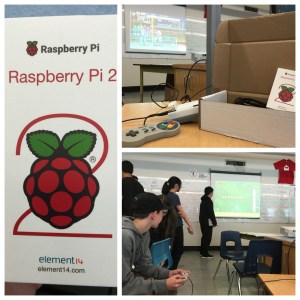 A friend of mine had taken a Raspberry Pi and turned it into a Super Nintendo simulator. I brought that into the class and plugged it in for the kids to see. It’s one thing to tell them what they can do, but being able to show them a finished product was even cooler. This inspired some students to research how to make one themselves. Because some projects that were larger may have needed students to buy other peripheral hardware like controllers, I provided an added incentive saying that if anyone came up with a substantial project that required some personal investment on their part, that they could take the Raspberry Pi home permanently when they were done their project.
Work on their projects consumed our third and fourth lessons.
Assessment
One of the biggest questions I got was “How are we going to be marked on this?” Lesson 5 was spent addressing assessment. Although the formative assessment that was ongoing throughout the project classes was also remarkably evident. Students with a more proficient skill set had the opportunity throughout the lessons to provide peer support… and I even noticed some scaffolding of their classmates learning!
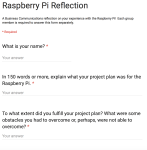 During lesson 5, students were required to do a reflection and discuss to what extent were they successful in completing the project they set out to do. They were asked what they learned and what they’d do differently.
My Own Reflection
As a type A teacher, a complete lack of instructional structure was a bit terrifying, but with the recent push for more personalized and project based learning, I thought this experience represented an excellent opportunity to loosen the reins a bit.
The next time I do this project, I’d like to have more self-paced mini-projects to provide the students, so those with few ideas can at least feel like they did something substantial with it. I feel like some students viewed the Raspberrypi.org projects daunting despite their apparent ease. I’d have more wires etc. so the class would be less limited by the hardware constraints.
Providing a working example of a successful video game emulator really captured the students’ attention. If I have access to the same system next time, I’ll certainly be sure to make use of it again.
The administrative privileges on our computers make it incredibly difficult or impossible to download or install anything. We needed to download and install different card images on the SD cards depending on the project the students wanted to do, but couldn’t because we didn’t have the necessary permissions. There was a program we needed to use to reimage the cards, but we weren’t able to download it. I tried to download it onto my school laptop, but the same restrictions were in place. That was probably the most frustrating part of the experience and one that is common to many projects we try and do with technology.
I think it’s important to always try new things. Failure is okay. Some of the students I know have been inspired to try and do bigger and better things with the Pi on their own time / during lunch hours, which I think is great and has to be considered a success. 5 lessons as an introduction were perfect for this year and I hope to be able to build on this ‘first slice of Pi’ with my new understanding of the device in the years to come.
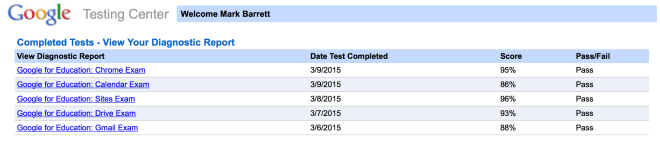

 Education Rumination
You must be logged in to post a comment.